
Running Qwen3.6 local model with llama.cpp and Open WebUI
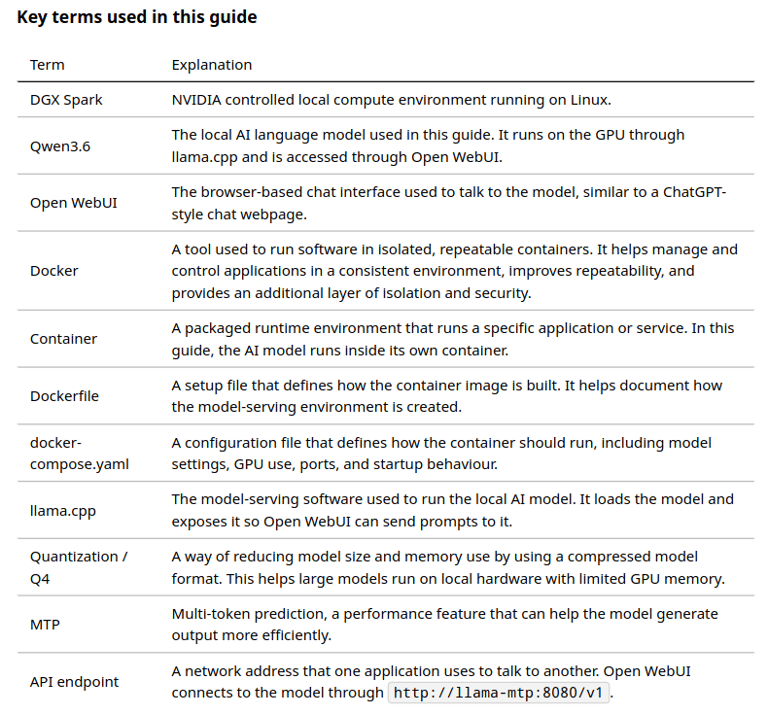
This guide shows how to set up and run a local LLM on your own machine, using Linux, Docker, llama.cpp, Open WebUI, and Qwen3.6 as a practical example.
TECHNICAL GUIDES
6/9/20266 min read
Learning outcomes
By completing this guide, you will learn how to:
Understand the core architecture of a local AI system, including the chat interface, model-serving container, GPU runtime, model storage, and API connection.
Before you start
You will be working in two places:
The Terminal (the black text window on the Spark) for setup commands.
The Open WebUI website (in your browser) for the final connection.
Copy commands exactly.
What you are building
Open WebUI (chat website) → talks to → a new container running the AI model → which runs on the Spark's GPU.
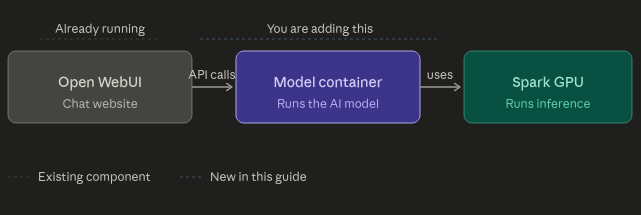
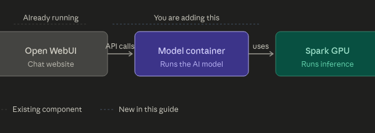
You are only adding one new piece in this guide: the model container. Open WebUI is assumed to already be installed and running. An Open WebUI setup guide will be provided separately.
Step 1 — Create a folder for the project
In the Terminal, type:
mkdir -p ~/llama-mtp/models
cd ~/llama-mtp
You are now inside the project folder. All remaining steps happen here.
Step 2 — Add the two setup files
You need two files in the ~/llama-mtp/ folder:
Dockerfile
docker-compose.yaml
These files are provided in this guide. You will create each file using nano, which is a simple text editor inside the Terminal.
2.1 Create the Dockerfile
In the Terminal, make sure you are inside the project folder: cd ~/llama-mtp
Open a new file called Dockerfile by typing this : nano Dockerfile
Paste the full Dockerfile content into the editor.
To save and exit nano follow in this sequence: CTRL + O -> ENTER -> CTRL + X
This means:
CTRL + O saves the file
ENTER confirms the file name
CTRL + X exits nano
2.2 Create the docker-compose.yaml file
Now create the second file by typing this: nano docker-compose.yaml
Paste the full docker-compose.yaml content into the editor.
Again, save and exit: CTRL + O -> ENTER -> CTRL + X
2.3 Check the files are in place
Run: ls
You should see:
Dockerfile docker-compose.yaml models
If Dockerfile or docker-compose.yaml is missing, create it again before continuing.
Step 3 — Build the container
This step prepares the model software. It takes about 5–15 minutes.
Type: docker compose build
Note: wait. Lots of text will scroll. When it finishes you should see a line near the bottom that says: Image llama-mtp-unsloth:spark Built)
Step 4 — Start the model
Type: docker compose up -d
Then watch it start up: docker compose logs -f llama-mtp
Note: The first time, it downloads the AI model (about 18 GB). This can take several minutes depending on internet speed. The text will pause while it downloads.
Wait until you see a line mentioning the server is listening on port 8080.
When you see that, press Ctrl + C to stop watching the logs. (This does NOT stop the model — it keeps running in the background.)
Step 5 — Confirm the model is working
Type: curl http://localhost:8080/v1/models
You should get back a block of text that includes: unsloth/Qwen3.6-27B-MTP-GGUF:UD-Q4_K_XL
If you see that model name, the model is running correctly.
Step 6 — Connect Open WebUI to the model
Open WebUI runs in its own container. This one command lets the two talk to each other by name.
Type: docker network connect llama-mtp_default openwebui
Then confirm they can talk: docker exec openwebui curl -s http://llama-mtp:8080/v1/models
You should get back the same text with the model name in it. If you do, the two are connected.
Step 7 — Add the connection in the Open WebUI website
1. Open Open WebUI in your browser (the address you normally use, ending in :3000).
2. Click your name / avatar in the bottom-left corner.
3. Click Admin Settings.
4. Click Connections.
5. Under OpenAI API, click the + (add) button.
6. Fill in:
Auth: leave as Bearer, and type none in the key box.
Leave everything else as it is. Leave Model IDs empty.
7. Click Save.
Step 8 — Use it
1. Start a New Chat.
2. Click the model dropdown at the top of the chat.
3. Select unsloth/Qwen3.6-27B-MTP-GGUF:UD-Q4_K_XL.
4. Type a message, e.g. "What is the capital of Ireland?" and send it.
If it replies, you are finished. Everything is working.
Step 9 (Optional) — Make replies faster by turning off "thinking"
By default this model "thinks" before answering. It writes out its reasoning first, then the actual answer. That reasoning is often long, so simple questions take a while to reach the final answer.
You can turn thinking off so the model answers directly. This does not change the raw speed, but answers appear much sooner because the model skips the long reasoning step. Good for general chat and quick questions.
To turn thinking off:
1. Open the compose file:
cd ~/llama-mtp
nano docker-compose.yaml
2. Find the command: section. Add these two lines into it (anywhere among
the other lines is fine, e.g. just before the --spec-type line):
--reasoning off
--reasoning-budget 0
The whole command: section should look like this:
command: >
-hf unsloth/Qwen3.6-27B-MTP-GGUF:UD-Q4_K_XL
--host 0.0.0.0
--port 8080
-ngl 99
-c 8192
-fa on
-np 1
--reasoning off
--reasoning-budget 0
--spec-type draft-mtp
--spec-draft-n-max 2
3. Save and exit: Ctrl + O, Enter, Ctrl + X.
4. Restart the model (no rebuild needed):
docker compose down
docker compose up -d
5. Check it started cleanly:
docker compose logs --tail 30 llama-mtp
You should see it load and listen on port 8080. If instead it keeps restarting with an error, remove the two lines you added and restart again.
To turn thinking back on later: open the file again, change --reasoning off to --reasoning on, save, and restart with the same two commands in step 4.
After setup
You only do the setup above once. After that:
The model container should start automatically when the DGX Spark, or whichever Linux machine you are using.
Just open Open WebUI in your browser and start chatting.
To check it is running, type: docker ps
You should see llama-mtp in the list with status Up.
If something stops working
The model isn't in the dropdown:
Refresh the browser page.
Re-check the URL in Step 7 is exactly http://llama-mtp:8080/v1.
After restarting/recreating Open WebUI, it can't reach the model:
Re-run the connect command from Step 6:
docker network connect llama-mtp_default openwebui
Restart the model container:
cd ~/llama-mtp
docker compose restart
Stop the model container:
cd ~/llama-mtp
docker compose down
Start it again:
cd ~/llama-mtp
docker compose up -d
Notes
This guide is written for Linux systems with NVIDIA GPU access. DGX Spark is only the example machine.
It may also work on other suitable Linux/NVIDIA machines, but hardware, drivers, Docker, GPU runtime, and model performance may vary.
A downloadable copy of the guide, dockerfile and dockercompose file will be provided. All is required is just copy and paste.
For Windows, macOS, AMD GPU, or CPU-only setups, use the adaptation prompt below instead of copying the commands directly
Adaptation prompt for other machines
I am following a guide for running Qwen3.6 locally using Docker, llama.cpp, MTP, and Open WebUI. The original guide is written for a Linux system with NVIDIA GPU access.
Please help me adapt it for my own machine and guide me step by step as I do it.
My system:
Operating system: [Windows / macOS / Linux]
Hardware: [CPU, RAM, GPU, VRAM if known]
GPU type: [NVIDIA / AMD / Apple Silicon / CPU only]
Docker installed: [Yes / No / Not sure]
Open WebUI installed: [Yes / No / Not sure]
Please do the following:
Tell me which parts of the guide still apply
Tell me which parts need to change for my machine
Explain whether MTP, GPU acceleration, or this exact Qwen3.6 setup is suitable
Give me one step at a time
Explain each command before I run it
Wait for my command output before moving to the next step
Ask for command output when needed
Avoid destructive commands unless you clearly explain the risk first
Goal:
Help me run a local AI chat model and connect it to Open WebUI using the safest practical setup for my machine.
If you get stuck, you can use ChatGPT or another frontier AI model to help troubleshoot. Upload this guide, paste the error message, and use the prompt below.
Troubleshooting prompt
I am following this guide to set up Qwen3.6 locally using Docker, llama.cpp, MTP, and Open WebUI.
Please help me troubleshoot step by step. Ask for command output if needed, explain commands before I run them, and avoid destructive commands unless you explain the risk first.
Step where I am stuck:
[Paste step number]
Error or command output:
[Paste error message]
Links
https://unsloth.ai/docs/models/qwen3.6#llama.cpp-mtp-guide
https://huggingface.co/unsloth/Qwen3.6-27B-MTP-GGUF
Downloads